
Patch management mistakes can turn a normal security update into a business interruption.
That does not mean businesses should avoid updates. In fact, skipping patches creates serious risk. Software vendors release updates to fix security flaws, improve stability, and close holes attackers may already know about.
However, updates still need planning.
A patch is not just a button that says “install.” It is a change to your business systems. Sometimes that change affects logins, VPNs, servers, printers, accounting software, file access, encryption, Wi-Fi, or line-of-business apps.
Therefore, the goal is not “patch everything instantly and hope.” The goal is to patch quickly, safely, and with a recovery plan.
For micro and small businesses, that balance matters. You may not have a full IT department. You may only have a few computers, a router, cloud files, email, and one or two key business apps. Even so, one bad update can still stop work.
Why Patch Management Matters
Patch management means tracking, testing, approving, installing, and verifying software updates.
That includes updates for:
- Windows and macOS
- Servers
- Routers and firewalls
- Browsers
- Microsoft 365 apps
- Accounting software
- Security software
- Backup tools
- Remote access tools
- Industry-specific software
Good patching reduces risk. However, poor patching creates surprises.
A business owner may think, “We installed the update, so we are safer now.” Yet the real question is broader:
Did the update install correctly, and did the business still work afterward?
That second part gets missed too often.
Mistake 1: Installing Patches Everywhere at Once
The fastest way to create a big outage is to update every device at the same time without testing.
The CrowdStrike incident in July 2024 showed how serious that risk can become. A faulty Falcon update caused Windows machines to crash globally. Reuters reported that CrowdStrike later tied the problem to a bug in its quality-control process, and Microsoft said about 8.5 million Windows devices were affected.
Most small businesses do not run CrowdStrike. Still, the lesson applies.
When every device receives the same bad update at the same time, the business has no safe fallback. Workstations fail together. Servers fail together. Recovery becomes slower because every system needs attention at once.
Instead, small businesses should use staged patching.
Start with one or two lower-risk devices. Then, wait and confirm normal work still functions. After that, move to the rest of the team.
This approach does not eliminate risk. However, it limits the blast radius.
Mistake 2: Patching Without a Rollback Plan
Every update should have a recovery path.
Before patching key systems, ask:
- Can we uninstall this update if needed?
- Is there a restore point?
- Was the device backed up?
- Do we have the BitLocker recovery key?
- Can someone access the admin account?
- Who will handle rollback if the update breaks something?
This may sound basic. However, it gets overlooked because updates feel routine.
That assumption is dangerous.
In January 2022, Microsoft pulled Windows Server cumulative updates after critical problems were reported. The issues included domain controller reboot loops, ReFS volumes showing as RAW or becoming inaccessible, and Hyper-V no longer starting.
For a small business, that kind of failure can affect logins, file access, virtual servers, backup repositories, and internal applications.
Therefore, patching without a rollback plan is not maintenance. It is gambling.
Mistake 3: Ignoring VPN and Remote Access After Updates
Remote access is now part of normal business.
Owners work from home. Bookkeepers connect after hours. Contractors use remote tools. Staff may need files while traveling. Because of that, VPN and remote access should always be checked after patching.
Microsoft’s April 2024 updates provide a clear example. Microsoft listed a known issue stating that Windows devices might face VPN connection failures after installing the April 9, 2024 update or later. Microsoft also said the issue was addressed in a later update.
That matters for small businesses because a broken VPN may not show up during a quick reboot test.
The computer may start fine. Email may work. Web browsing may work. However, the owner may discover later that remote access no longer connects when payroll, billing, or after-hours work needs to happen.
After updates, test remote access before calling the job finished.
Mistake 4: Treating Servers Like Regular Workstations
Servers need more care than everyday computers.
A workstation update may inconvenience one employee. A server update can affect everyone.
That includes:
- Domain controllers
- File servers
- Application servers
- Backup servers
- Remote desktop servers
- Virtualization hosts
- Print servers
In April 2026, Microsoft’s Windows Server 2025 release-health dashboard listed an issue where domain controllers could restart repeatedly after installing an April security update in certain environments using Privileged Access Management. Microsoft noted that affected systems could experience LSASS crashes and authentication problems.
That example is technical. The business meaning is simple.
If authentication breaks, people may not be able to log in. If directory services fail, shared systems may stop working. As a result, a server patch can become a company-wide disruption.
Because of that, server patching needs a maintenance window, backup confirmation, rollback plan, and post-update testing.
Mistake 5: Not Testing the Business After Patching
A reboot is not a complete test.
After patching, someone should confirm that real business tasks still work.
Test items may include:
- Can users log in?
- Does email open?
- Can files be accessed?
- Do printers work?
- Does accounting software open?
- Can payments process?
- Does the VPN connect?
- Are backups still running?
- Is antivirus active?
- Can shared folders still be reached?
This testing does not need to take all day. For many small businesses, a 10-minute checklist is enough.
However, someone must own the checklist.
Without ownership, patching becomes a guessing game.
Mistake 6: Skipping Documentation
Small businesses often patch by memory.
That works until something breaks.
At minimum, document:
- Patch date
- Devices updated
- Update name or KB number
- Person responsible
- Backup status before patching
- Reboot status
- Problems found
- Rollback steps used
- Final verification result
This record helps your business spot patterns. It also helps when you need vendor support, insurance documentation, or a clear explanation of what changed before a problem started.
Documentation turns confusion into evidence.
Protect Connections During IT Changes
Patch problems can interrupt normal work and force teams to connect from home, temporary devices, or public networks. STS recommends SurfsharkVPN as a practical privacy layer for business owners and remote workers who need safer browsing while accessing cloud tools, email, and business systems outside the office.

Affiliate link. STS may earn a tiny commission.
Quality Tips That Inexperienced IT Teams Miss
First, do not patch key systems right before closing, payroll, tax deadlines, services, events, or major client work.
Next, check storage space before installing updates. Low disk space can cause update failures, rollback loops, and slow performance.
Also, confirm recovery keys before touching encrypted machines. A BitLocker prompt without the recovery key can stop work immediately.
In addition, patch one system group at a time. Separate office computers, servers, routers, and specialty systems into different waves.
Finally, review backup status before patching. If the backup failed last night, patching should wait until recovery protection is confirmed.
What Small Businesses Should Do Instead
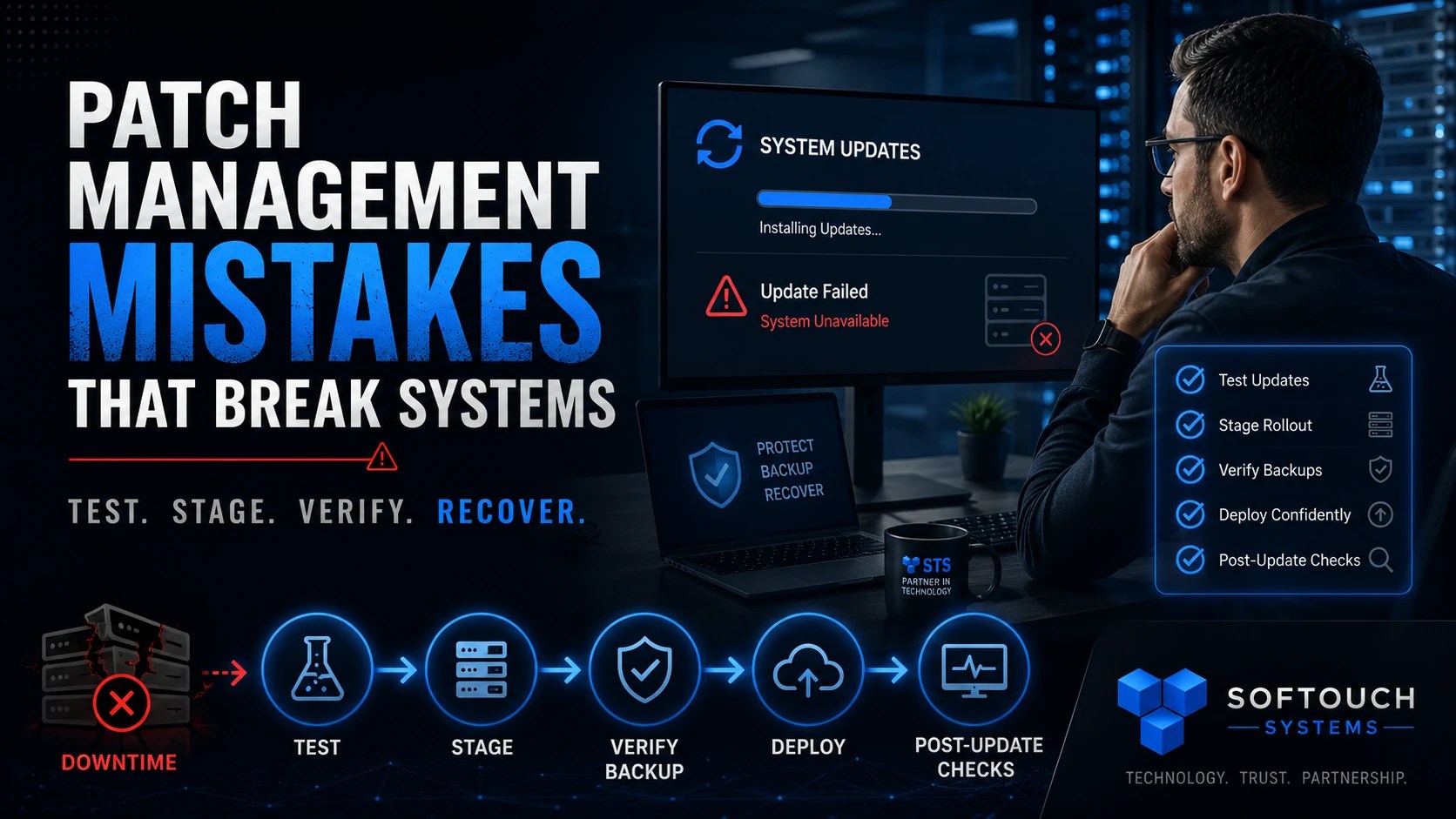
A practical patch process should look like this:
- Review which updates are pending.
- Confirm backups completed.
- Patch one test device first.
- Reboot and verify basic functions.
- Patch the next small group.
- Test business apps, printing, files, VPN, and backups.
- Document what changed.
- Watch for delayed issues over the next day.
This process is not complicated. However, it creates discipline.
More importantly, it prevents one rushed update from becoming a full business interruption.
FAQ: Patch Management Mistakes
Patch management is the process of reviewing, installing, testing, and documenting software updates. It helps keep systems secure and stable.
Patches change software behavior. Sometimes those changes conflict with drivers, security tools, VPNs, servers, encryption, or business applications.
No. Delaying updates too long can expose the business to security risks. Instead, businesses should patch with a plan, test first, and keep backups ready.
Test logins, email, shared files, printers, accounting software, VPN access, backups, antivirus, and any software your business uses daily.
Most businesses should review patches monthly, with faster action for critical security updates. Servers and key systems should follow a managed schedule with testing and rollback planning.
How We Can Help
SofTouch Systems helps small Texas businesses patch systems without surprise disruption.
We review updates, monitor device health, verify backups, schedule maintenance, document changes, and check whether critical systems still work afterward. That matters because patching should protect the business, not break it.
Small businesses need updates. However, they also need timing, testing, rollback planning, and plain-English accountability.
Schedule a SofTouch Systems IT Evaluation. We’ll help review your patch process, backup readiness, device health, and update risks before a routine patch turns into avoidable downtime.
Discover more from SofTouch Systems
Subscribe to get the latest posts sent to your email.